You can help support this website by buying me a coffee!

SOLVED: How to fix error "No supported authentication methods available" by resetting the Azure Virtual Machine's SSH public key
Error when trying to connect to an Azure VM using SSH - No supported authentication methods available

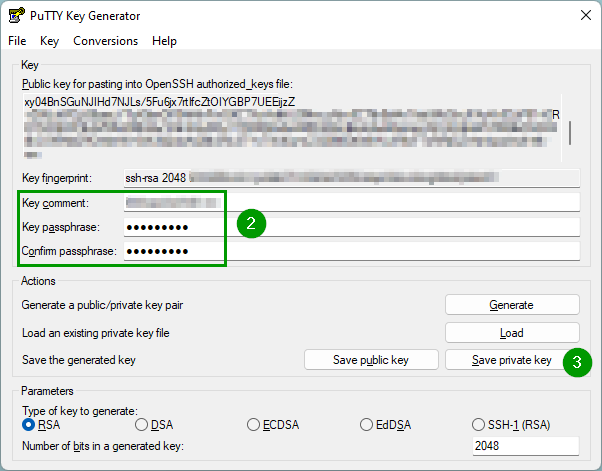
Open Putty Key Generator
Click Generate to create a new public/private key pair
Enter a key comment and passphrase
Copy the new public key and paste it into notepad
Save the private key file
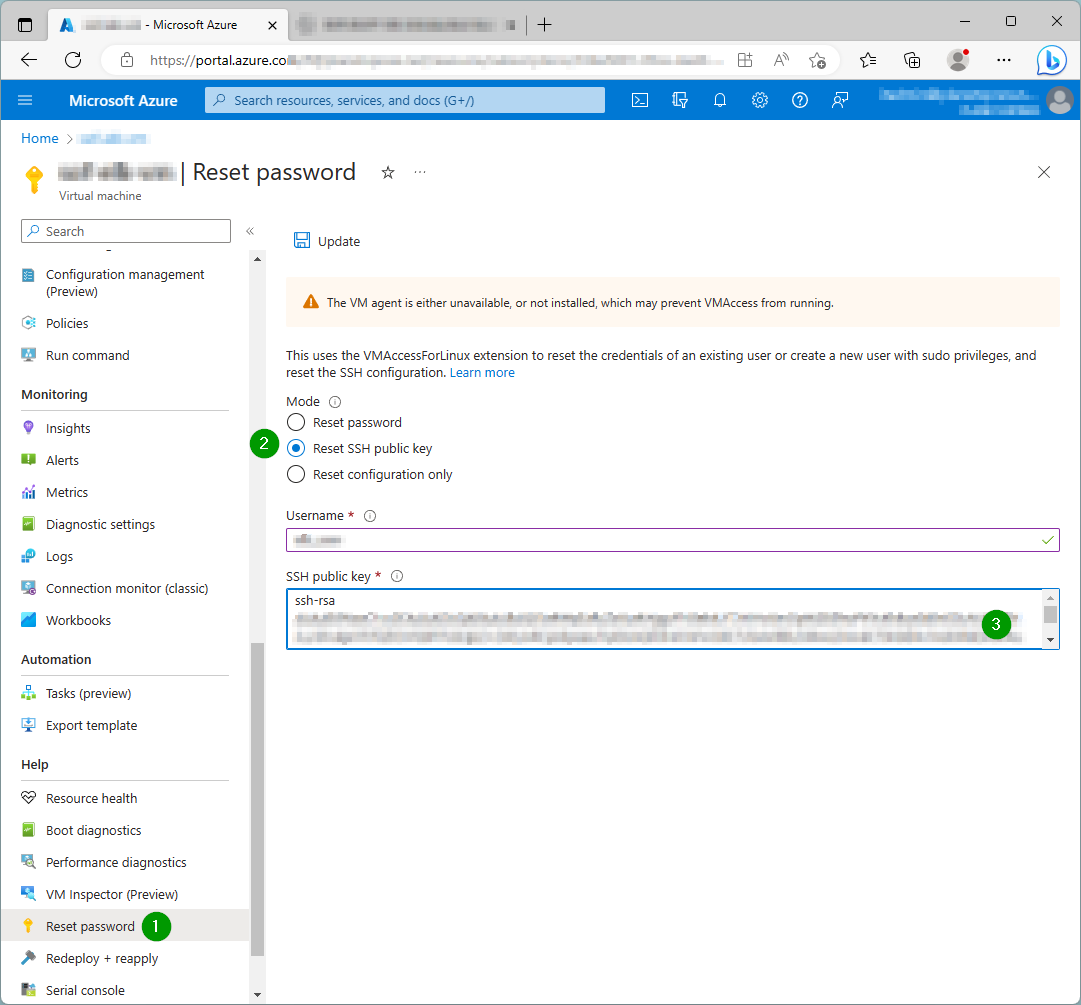
Reset the VMs SSH public key from the Azure portal
Virtual Machine
Help - Reset password - Reset SSH public key
Enter the username and paste the public key
Open Putty and select the private key file
Connection - SSH - Auth - Credentials - select private key

Connect to the Azure VM
Enter the host name and port, then click open

Comments