You can help support this website by buying me a coffee!

How to convert Windows 11 Home (BIOS embedded product key) to Windows 11 Pro using a Microsoft 365 for Business Windows upgrade license
In this example, we have a laptop with a Windows 10 Home BIOS embedded product key that we need to convert to Windows 11 Pro so we can connect it to Office 365 Intune.
You can check the BIOS embedded product key using the following PowerShell
If the output is Core OEM the computer has a Windows 10 home firmware embedded key.
(Get-WmiObject -query 'select * from SoftwareLicensingService').OA3xOriginalProductKey
(Get-WmiObject -query 'select * from SoftwareLicensingService').OA3xOriginalProductKeyDescription
Core OEM:DM is Windows 10 Home

If you've got a laptop with a Windows 10 home key in the BIOS, you'll need to purchase a Windows 11 Home to Pro upgrade for Microsoft 365 Business license from your Microsoft Partner.
The Windows 11 upgrade licenses will show in the Office 365 admin portal
Billing - Your products
Click on Windows 11 Home to Pro Upgrade for Microsoft 365 Business

Select language and download ISO (optional)
Show activation keys

Copy key to clipboard


Set up for work or school

Settings - System
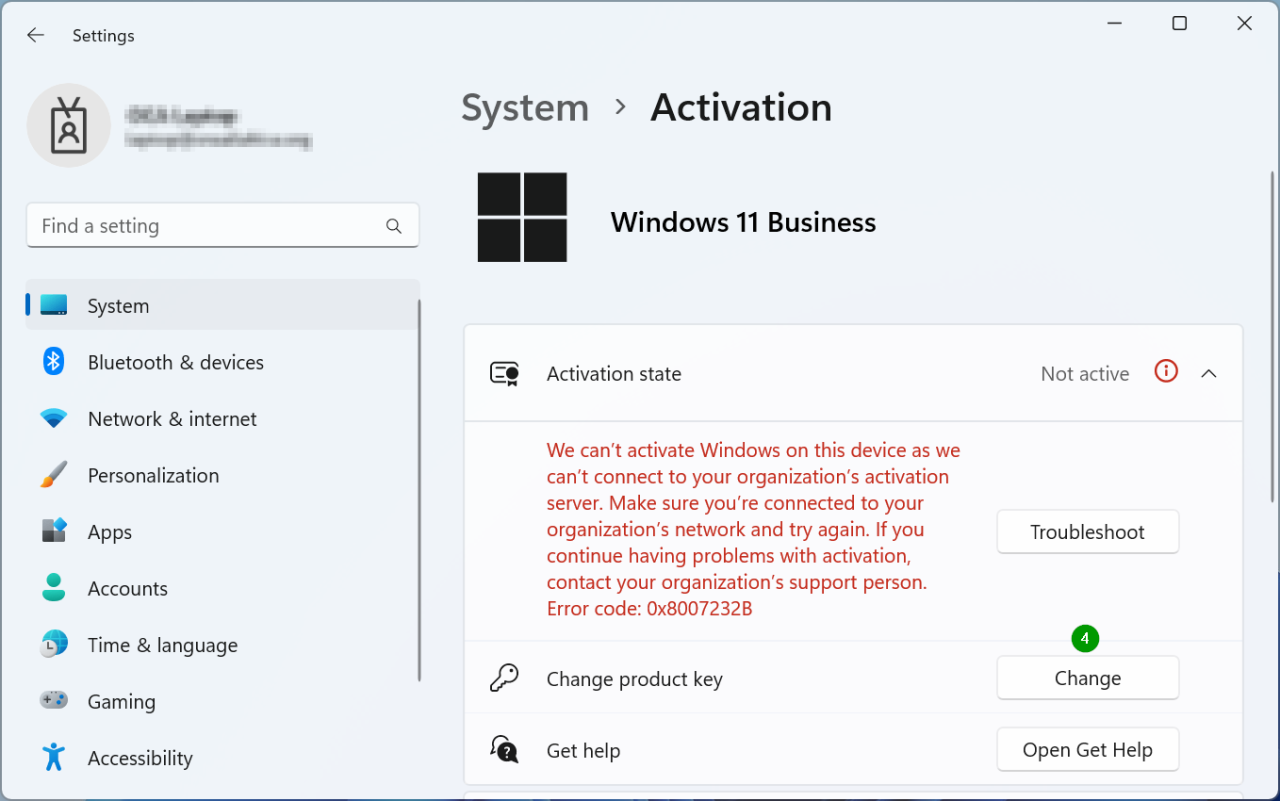
Windows isn't activated - Activate now

Change product key
Enter product key

Activate Windows

We've activated this copy of Windows


Comments