You can help support this website by buying me a coffee!

How to hide the Windows Security Appx icon from the Start menu using an FSLogix App Masking registry hiding rule on Windows 10 Virtual Desktop.
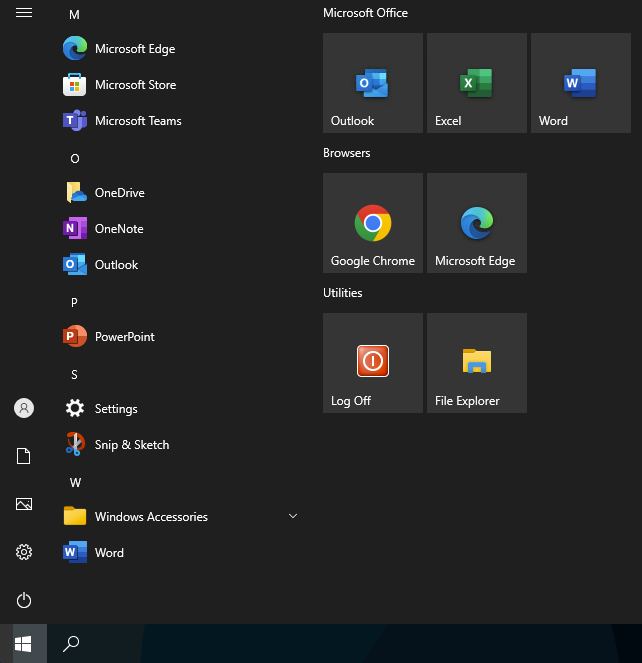
In this example, we want to remove the Windows Security App icon from the Start menu on Windows 10 22H2, Citrix Virtual Desktop

The Windows Security App uses this registry key
HKEY_LOCAL_MACHINE\SOFTWARE\Microsoft\Windows\CurrentVersion\Appx\AppxAllUserStore\InboxApplications\Microsoft.Windows.SecHealthUI_10.0.19041.1865_neutral__cw5n1h2txyewy
Create a new FSLogix App Masking rule with the following settings to hide the Windows Security Start menu icon
Hiding Rule
Object Name:
HKEY_LOCAL_MACHINE\SOFTWARE\Microsoft\Windows\CurrentVersion\Appx\AppxAllUserStore\InboxApplications\Microsoft.Windows.SecHealthUI_10.0.19041.1865_neutral__cw5n1h2txyewy
Object Type: Directory / Registry Key

Applies to Everyone

Comments 2
I've tried this but it doesn't seem to stop the 'Windows Security' app from appearing in the Start Menu (Win 10 - 22H2) but it does stop the application from opening, so that's kind of good enough.
This only works if you apply the rule for Everyone if not, the button is here but stops the application form openning. In the screenshots witht the assigments the rule is applied for everyone according to the FSLogix priority